


Key takeaway: Xmind wins as the best mind mapping software because its paid plans use AI to convert files, websites, and prompts into mind maps with organized topics and subtopics. Miro works best for remote teams due to its interactive tools like voting and idea clustering, while MindMeister is ideal for meeting management by keeping agendas, live notes, and follow-up tasks in one shared map.
Pen and paper feels like the easiest way to create a mind map until you need to arrange ideas and rewrite the entire map on another sheet. Mind mapping software offers preformatted templates and visual elements that adapt to different workflows and help me create presentation-ready maps. Below, I share the best mind mapping software I’ve used throughout my career and what stood out most about each tool.
| Xmind | Best AI-generated mind maps | ||
| Miro | Best for brainstorming workshops | ||
| MindMeister | Best shared meeting mind maps | ||
| Lucidspark | Best for idea prioritization | ||
| ClickUp | Best for turning ideas into project tasks | ||
| Mindnode | Best for personal mind mapping across Apple devices | ||
| FigJam | Best for brainstorming product and design concepts |
Why you can trust TechRepublic
As an expert software reviewer, I use mind mapping tools to plan buyer’s guides and make sense of complex product research. This experience helps me recognize which platforms support idea development and which become cumbersome as a map expands. For this guide, I evaluated each tool using a scoring rubric that covers map creation, editing options, presentation features, and workflow usability.
Marianne Sison
Senior Staff Writer for Project Management
How I evaluated the best mind mapping software
I evaluated each platform through a weighted scoring rubric based on the capabilities buyers need for brainstorming and visual planning. I verified product features through official vendor documentation, while users’ reviews informed my assessment of usability and customer sentiment.
- General features (25%): I assessed how easily users can create, move, connect, collapse, and annotate branches as their maps expand. Scores also reflected map layouts, relationship tools, visual customization, templates, sharing controls, and supported import and export formats.
- Pricing (20%): I compared free-plan availability, the lowest practical monthly cost, and the capabilities included in the base paid plan. I also considered total ownership costs, especially when collaboration, exports, and AI capabilities required upgrades or add-ons.
- Advanced features (20%): I looked beyond basic map creation to evaluate real-time collaboration, AI-assisted mapping, task conversion, presentation controls, and branch-focused viewing. I also included enterprise permissions and integrations because they determine whether a platform can support larger teams and established workflows.
- Expert score (15%): I combined my assessment of feature depth and value for money with recurring feedback from current G2 and Capterra reviews. I also considered how each provider documents its capabilities because incomplete or outdated information makes important purchasing details harder to verify.
- Ease of use (10%): I considered how quickly a new user could create a useful map without extensive setup or training. I also evaluated routine editing, navigation across larger maps, keyboard controls, and access across web, desktop, and mobile devices.
- Support (10%): I reviewed the availability of direct support, user communities, and educational resources that explain both basic and advanced workflows. Security and data governance were also assessed, including authentication, permissions, audit controls, and documented compliance standards.
1. Xmind: Best for AI-generated mind maps
My rating: 4.88 out of 5

Why I chose Xmind
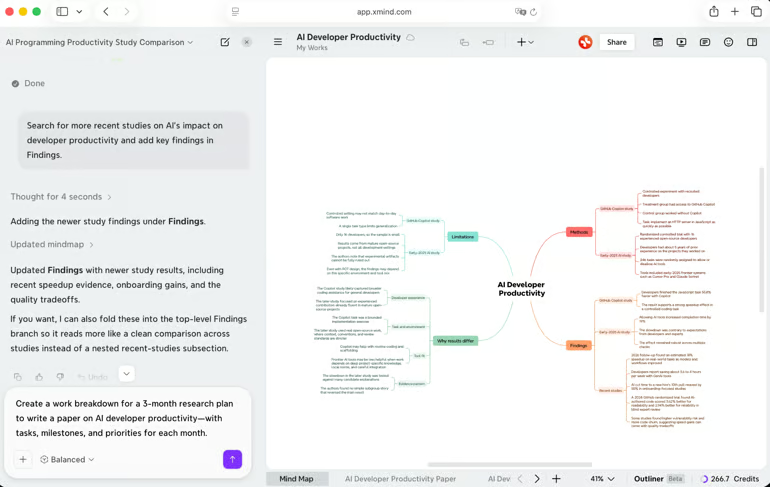
Xmind is my top choice for AI-generated mind maps because it can turn a prompt, document, or web link into a mind map within minutes. While many competitors add AI features to an existing canvas, Xmind uses AI throughout the mapping process. It generates the first draft and lets me refine the content through chat.
Create with AI accepts several input types, such as prompts, files, websites, and screenshots. The tool converts the source material into main topics, then adds two levels of subtopics. I can select a node and use Grow Ideas to expand one branch without regenerating the rest of the map.
When organizing ideas, I can ask the AI assistant in the left panel to rearrange the map instead of moving each node manually. Once the map is complete, AI Task Breakdown converts topics into individual to-do items. This allows me to move from research to initial project planning without exporting the map to another task management tool.
The main limitation is that Xmind reserves its AI capabilities for paid plans. These include unlimited AI generation and advanced project features. Miro may be a better option for teams that want AI-assisted brainstorming on a shared canvas without reaching an early usage limit.
| Pros | Cons |
|---|---|
| Multiple layouts handle complex idea mapping | Free plan caps maps at ten |
| AI converts documents into editable maps | Real-time collaboration requires Premium |
| Turn mind maps into a slideshow | AI usage is credit-based |
Pricing
- Free plan: Includes up to 10 collaborative maps and five Pitch slides. It provides 10 introductory AI credits.
- Free trial for paid plans: 7 days for yearly subscriptions.
- Pro: $4.92/month for one user. Includes up to 50 collaborative maps, expanded exports, and unlimited Pitch slides.
- Premium: $8.25/month for one user. Includes unlimited collaborative maps and real-time editing. It adds project planning tools plus 500 monthly AI credits.
- Business: $10/seat/mo. Includes team administration, real-time co-editing, and 800 monthly AI credits per seat.
- Enterprise: Custom pricing. Includes centralized access controls, SSO, and enterprise security.
AI pricing note: Credit-based. Premium includes 500 credits per month, while Business includes 800 credits per seat. Add-on pricing is not stated.
Standout features
- Xmind AI: Convert webpages, documents, and YouTube videos into editable mind maps that organize source material into connected topics.
- Relationship: Connect topics across separate branches, then label each relationship to explain dependencies, comparisons, or other associations.
- Task: Assign priorities, owners, dates, durations, and dependencies to mapped topics while monitoring completion from the same visual plan.
- Outliner: Switch between the visual map and linear outline to reorganize ideas when hierarchical editing becomes easier in list form.
2. Miro: Best for brainstorming workshops
My rating: 4.70 out of 5

Why I chose Miro
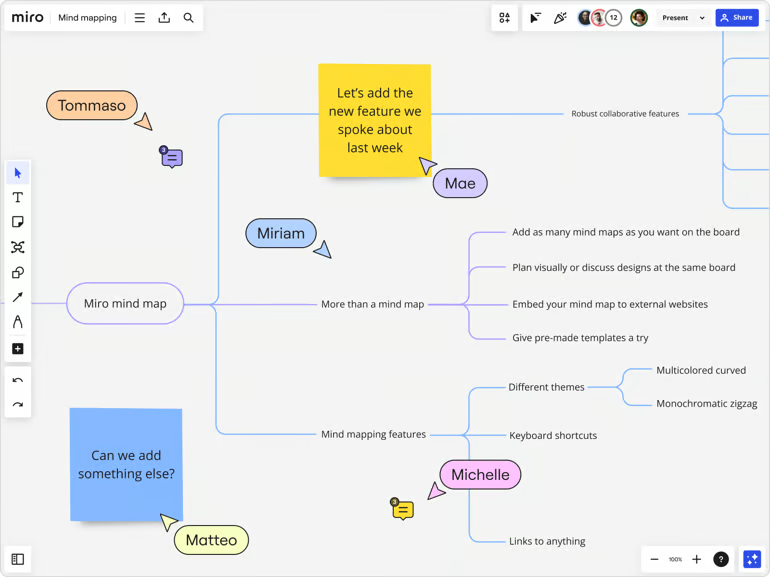
I highly recommend Miro for remote teams that frequently run live brainstorming sessions. It provides everyone with a single canvas for contributing and organizing ideas, while the host collects workshop ideas before organizing them into a mind map.
During sessions, I can place sticky notes, mind map nodes, and freehand sketches side by side as participants share their input. This allows discussions to begin with separate notes and questions before the group identifies common themes.
From there, I can add a mind map anywhere on the board and rearrange its branches while the discussion continues. Miro AI can expand an idea while grouping sticky notes by theme. Once we review the results, dot voting helps the group select which ideas should move forward. This lets me manage the session from initial brainstorming through final prioritization without drafting the content elsewhere.
Mobile access has limitations, so I would not rely on a phone to facilitate or edit a mind mapping board. If a team mainly needs to sort and rank ideas, I would consider Lucidspark because it provides interactive activities, timers, and voting.
| Pros | Cons |
|---|---|
| Ready-made workshop templates | Large boards can lag or freeze |
| Shared canvas supports remote brainstorming | Sprawling boards become difficult to navigate |
| Integrations connect maps to project tools | Per-seat pricing grows expensive at scale |
Pricing
- Free plan: Includes three editable boards, templates, and limited AI access.
- Starter: $8/member/mo. Includes unlimited private boards, workshop tools, and 25 monthly AI credits per member.
- Business: $20/member/mo. Includes multiple workspaces and advanced diagramming. It adds AI workflows plus 50 monthly credits per member.
- Enterprise: Custom pricing for at least 30 members. Includes centralized administration, advanced security, and organization-wide AI controls.
AI pricing note: Credit allowances vary by plan.
Standout features
- Miro AI: Generate fully editable maps from written prompts, then expand selected branches with questions, ideas, or related topics.
- Collapse and expand branches: Hide lower-level topics to reduce visual clutter while navigating complex maps or presenting only the details relevant to viewers.
- Voting: Run timed voting sessions on mapped ideas, then review ranked results before choosing priorities or next steps.
- Mind map export: Export complete boards or selected mind map areas as images and PDF files for presentations, reports, or offline sharing.
3. MindMeister: Best shared meeting mind maps
My rating: 4.54 out of 5

Why I chose MindMeister
MindMeister has been a useful addition to my virtual meetings because a shared mind map preserves the discussion by serving as the agenda, to-do list, and meeting notes.
Before the meeting, I can add a collaborative agenda to the mind map and share it with attendees for review. Participants can edit the map at the same time, leave comments, or vote on topics. The presentation mode turns the same map into a slideshow, while action items are converted into tasks with owners and due dates. The meeting output remains in a single file instead of being converted into slides, notes, and a task list.
MindMeister’s task widget covers assignees, priorities, and due dates, but it lacks statuses, dependencies, and board views. When meeting actions require more detailed project tracking, I would choose ClickUp because its mind maps connect to native tasks and subtasks.
| Pros | Cons |
|---|---|
| Real-time editing supports shared brainstorming | Free plan allows only three maps |
| Presentation mode shares maps without slides | AI generation works only on the web |
| AI generates maps from uploaded files | Microsoft exports require the Pro plan |
Pricing
- Free plan: Includes three mind maps, unlimited collaborators, and AI-assisted map creation in beta.
- Personal: $6.50/user/mo. Includes unlimited private maps, exports, and seven-day version history.
- Pro: $10.50/user/mo. Includes unlimited attachments and version history. It adds administration options plus Microsoft exports.
- Business: $15.50/user/mo. Includes group sharing, compliance backups, and advanced access controls.
AI pricing note: AI-assisted map creation is included in beta across all plans.
Standout features
- Generate with AI: Build a complete map from a prompt, uploaded document, or image while automatically arranging ideas into branches and subtopics.
- Connections: Link topics across separate branches, customize the connecting line, and label the relationship to determine how ideas interact.
- Presentation mode: Group selected topics into slides, then present the map progressively without rebuilding its content in separate presentation software.
- Versions Toolbar: Restore an earlier map after unwanted edits, compare saved versions, and identify who contributed changes during collaborative work.
4. Lucidspark: Best for idea prioritization
My rating: 4.51 out of 5

Why I chose Lucidspark
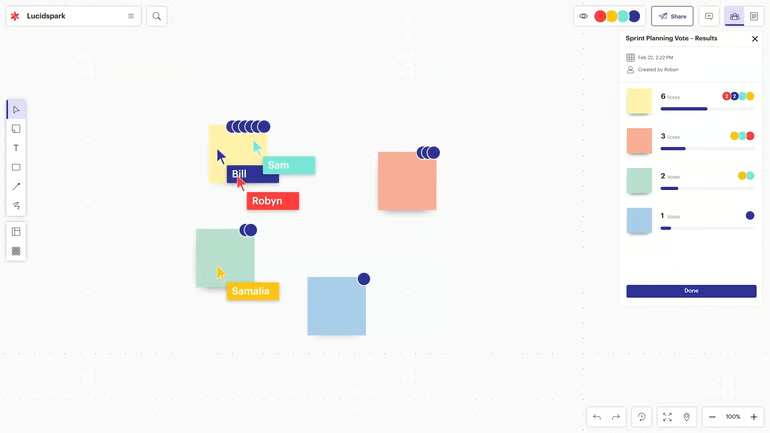
Lucidspark works best for teams that often deal with crowded mind maps and need an easy way to rank ideas. It treats prioritization as part of the workshop, allowing the session to end with a shortlist instead of scattered notes.
Before starting the vote, participants submit their ideas as sticky notes or mind map nodes, which I group into related clusters. This keeps similar ideas together and gives participants fewer distinct options to evaluate.
If the list still has too many options, I use Breakout Boards so smaller groups can review different options before everyone returns to the main discussion. Visual Activities let me run timed voting sessions, with Lucidspark automatically counting and displaying the results.
Mind maps are available across all plans, but voting and advanced facilitator controls require the Team plan. Miro includes voting and timers on its $8-per-user Starter plan, making it a lower-priced alternative for teams that mainly need workshop facilitation.
| Pros | Cons |
|---|---|
| Technical shape libraries support complex diagrams | Free plan limits editable documents to three |
| Data linking keeps project visuals current | Connector management becomes difficult in complex maps |
| Real-time editing supports shared process mapping | AI cannot automate every diagram change |
Pricing
- Free plan: Includes three editable boards, unlimited shapes, basic visual activities, commenting, presentation tools, sorting, and Lucid AI
- Individual: $9/mo. Includes unlimited editable boards, premium visual activities, and 1GB of storage
- Team: $10/user/mo. Includes guest collaboration, voting, timers, facilitator tools, revision history, and advanced visual activities
- Enterprise: Custom pricing. Includes Lucidchart, team hubs, breakout boards, SAML authentication, sharing controls, enterprise templates, and project management integrations
AI pricing note: Lucid AI is included across all plans.
Standout features
- AI mind maps: Generate new branches and connections from a topic, then organize or summarize the resulting ideas within the shared canvas.
- Sort: Group large sets of brainstorming notes into themed containers, making recurring patterns easier to review before refining the map.
- Voting: Rank mapped ideas through a shared voting session, so participants can select priorities before the group defines its next steps.
- Frames and Paths: Guide collaborators through selected sections in a defined order, keeping presentations focused when the canvas contains several idea groups.
5. ClickUp: Best for turning ideas into project tasks
My rating: 4.20 out of 5

Why I chose ClickUp
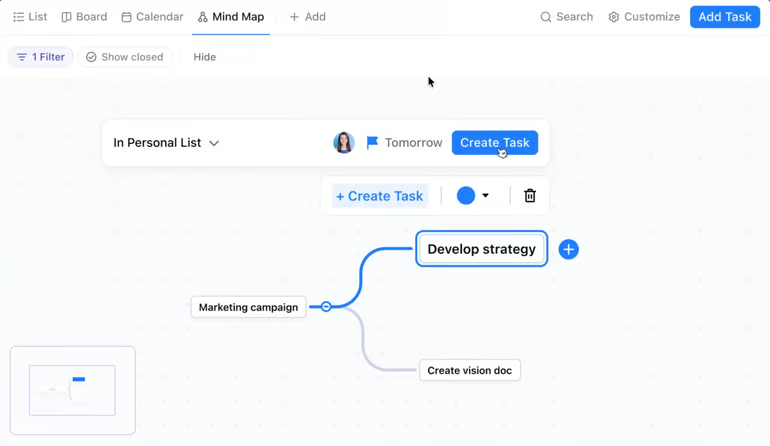
As a project management platform, ClickUp connects its mind maps to project activities. Instead of treating the map as a visual reference, I can convert ideas into tasks and organize them within the project structure.
For project planning, I use Blank mode to arrange concepts before turning them into project activities. Once an idea is ready for action, the node options menu lets me convert it into a task, place it in a List, and assign an owner.
In Task mode, dragging a node between Lists or Folders updates its position in the task hierarchy. I can also select any task node to open the full task window and add further details. When the map expands to include many connected tasks, I can use Re-Layout to reorganize the nodes and keep the project structure readable.
ClickUp does not offer a documented presentation mode for presenting a completed mind map to stakeholders. When I need to present a map as a slideshow, I would choose MindMeister because it supports presentations within the same editor.
| Pros | Cons |
|---|---|
| Map nodes convert directly into tasks | Mind mapping requires the Business plan |
| Task mode reflects live project work | Deleted mind maps cannot be restored |
| Blank mode supports free-form brainstorming | Broader workspace requires more setup time |
Pricing
- Free plan: Includes unlimited tasks, collaborative documents, and Kanban boards.
- Unlimited: $7/user/mo. Includes unlimited storage and integrations, resource management, and portfolio tools.
- Business: $12/user/mo. Includes mind mapping, private whiteboards, and 5,000 monthly automations.
- Enterprise: Custom pricing. Includes advanced governance, SAML SSO, and 250,000 monthly automations.
AI pricing note: Brain AI costs $9/user/mo. Everything AI costs $28/user/mo., while extra credits cost $10 per 10,000 credits.
Standout features
- Task mode: Display existing ClickUp tasks as connected branches, then create, edit, move, or delete work without leaving the map.
- Blank mode: Create unrestricted nodes for early brainstorming, then rearrange branches before connecting selected ideas to project work.
- Task conversion: Convert any blank-map node into a task, select its ClickUp List, and preserve the original node name as the task title.
- Re-Layout: Rearrange every node automatically after branches move or expand, restoring a readable map without repositioning individual topics.
Learn more in our full ClickUp review.
6. MindNode: Best for personal mind mapping across Apple devices
My rating: 4.18 out of 5

Why I chose MindNode
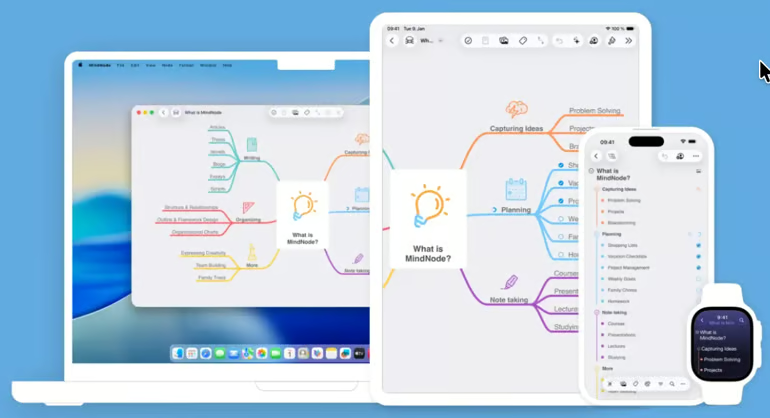
As an iOS user, I use MindNode to develop and review my ideas across Apple devices such as Mac, iPhone, iPad, Apple Watch, and Apple Vision Pro. It also works best for users concerned about privacy because documents are encrypted and stored in their own iCloud accounts rather than on MindNode’s servers.
I usually begin with a free-form mind map and collapse branches that I do not need to review. When I want to read the same information in a linear format, I can easily switch to the outline format. Focus Mode displays one branch at a time, which helps me review a specific topic when the full map becomes too crowded.
Like ClickUp, I can also convert nodes into tasks and sync them with Apple Reminders, allowing me to manage ideas and follow-up work from the same map. Since iCloud automatically merges offline changes, I can add a branch on my iPhone and continue working on the updated map from my Mac without exporting or importing files.
MindNode is limited to Apple devices, so I cannot use it on Windows or Android or share the same experience with a cross-platform team. If I need browser-based access across different operating systems, I would choose FigJam because participants can open and edit the board without relying on Apple devices.
| Pros | Cons |
|---|---|
| Native Apple apps sync across devices | Windows and Android apps are unavailable |
| Outline view supports linear planning | Document history is limited to Mac |
| Task highlights separate actions from ideas | Most collaboration controls require Plus plan |
Pricing
- Free plan: Includes core mind mapping and file exports. Basic editing is available without a subscription.
- MindNode Plus: $2.99/mo. Includes outlining, collaboration, and Apple Intelligence features across supported Apple devices.
AI pricing note: Apple Intelligence features are included with MindNode Plus.
Standout features
- Outline View: Edit the same ideas in a linear outline, then return to the visual map without maintaining two separate documents.
- Connections: Link related nodes across different branches, showing associations that do not follow the map’s primary parent-child hierarchy.
- Tasks: Convert leaf nodes into trackable tasks, monitor branch completion, and synchronize task status with Apple Reminders across supported devices.
- Radial Layout: Arrange every branch around the central topic for a balanced view when ideas need equal visual emphasis.
7. FigJam: Best for brainstorming product and design concepts
My rating: 4.18 out of 5

Why I chose FigJam
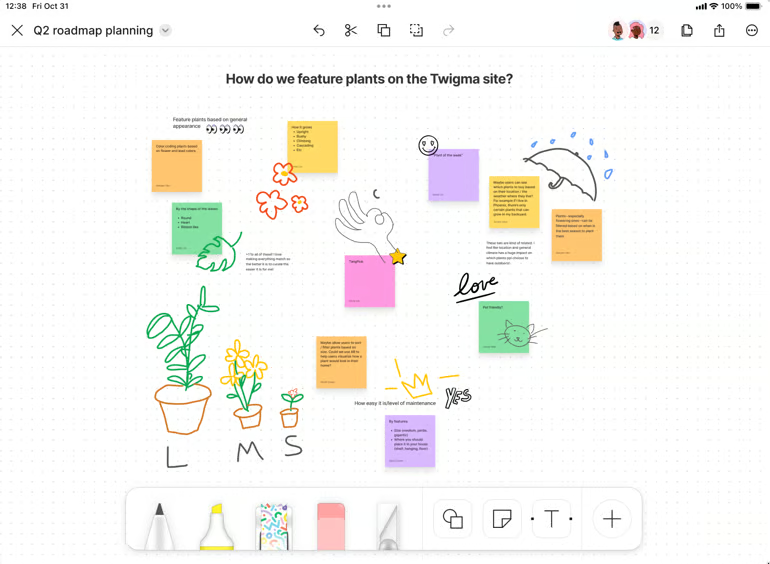
I recommend FigJam to product and design teams because they can connect mind map branches to wireframes, user feedback, and early design concepts on the same board. Users can organize the reasoning behind a feature while the team reviews how the idea could work in the product.
To start a map, I select Mind Maps from the toolbar and use keyboard shortcuts to add child or sibling nodes. When I need help developing an idea, FigJam AI can expand a selected node or create an initial map from a prompt. Objects attached to nodes also let me connect branches to wireframes or customer feedback instead of relying only on text.
Once an idea is ready for further work, task widgets for Asana, Coda, and Jira help move it into the team’s existing workflow. I can also use Figma Slides to present the map to stakeholders without drafting the content in another app.
FigJam stores mind maps in shared, account-based whiteboard files, which may not suit someone who wants a private tool for personal mapping. For individual use, I would consider MindNode because it supports offline work and stores encrypted documents in the user’s iCloud account.
| Pros | Cons |
|---|---|
| Figma integration connects ideas to designs | Advanced diagramming tools remain limited |
| AI expands branches during brainstorming | Integration catalog trails broader whiteboard platforms |
| Mind maps are available on every plan | Text shapes are not converted to mind maps |
Pricing
FigJam access is sold through Figma plans. A Collab seat provides full access to FigJam.
- Free plan: Includes limited access to FigJam and other Figma products. It provides up to 500 AI credits per month.
- Professional Collab seat: $3/user/mo. Includes unlimited FigJam files and projects for one team.
- Organization Collab seat: $5/user/mo. Includes unlimited teams and centralized administration.
- Enterprise Collab seat: $5/user/mo. Includes custom workspaces, advanced security, and SCIM seat management.
AI pricing note: Collab seats include 500 monthly AI credits.
Standout features
- FigJam AI: Create an editable mind map from a prompt to give the team a starting point for brainstorming.
- Expand from node: Create child branches in any direction from a selected node to use the available canvas space.
- Add existing object: Attach existing sticky notes, shapes, and text to map nodes without recreating the supporting content.
- Quick create: Add child and sibling nodes with keyboard shortcuts without returning to the mind map toolbar.
More project management coverage
How to choose the best mind mapping software
The right mind mapping software depends on your intended use, the number of contributors, and the amount of information each map must handle. Consider the following factors when comparing your options:
- Mind mapping workflow: Start by defining whether you need mind maps for personal planning, research, meetings, workshops, project planning, or presentations. Individual users may prefer focused mapping controls, while group sessions often require a larger canvas and meeting tools. Decide whether you need a dedicated mind mapping app or a whiteboard with many visual formats.
- Map creation and organization: Test how quickly you can add, move, connect, collapse, and reorganize topics as the map expands. Large maps become harder to review, so check whether you can isolate branches, search for topics, or switch to an outline. The software should let you revise the map without rebuilding sections whenever priorities or relationships change.
- Collaboration and meeting tools: Consider how participants will add ideas, discuss contributions, and make decisions within the map. Real-time editing and guest access may be enough for shared planning, while workshops may also require voting, timers, and idea grouping. Review permissions and version history if several people will edit the same map or outside participants need limited access.
- AI, integrations, and file handling: Check whether AI only generates a basic map or can also expand branches, summarize sources, and convert topics into tasks. Integrations should connect ideas to the project, documentation, or presentation tools your team already uses. Review import and export formats carefully if you need to share maps with clients or move content between platforms.
- Pricing, device access, and scalability: Compare free mind map tools and premium subscriptions against the number of users, maps, boards, and AI credits you expect to need. Confirm that the software works on the browsers, operating systems, and mobile devices used by everyone involved. Larger organizations should also evaluate admin permissions, security controls, centralized billing, and support options before committing.
FAQs
What is mind mapping software used for?
Mind mapping software organizes information around a central topic using branches and subtopics. People use it to brainstorm ideas, outline content, summarize research, plan projects, prepare meeting agendas, and show relationships between topics.
What is the best mind mapping software?
The best mind mapping software depends on your intended workflow. Xmind supports AI-generated mind maps, Miro provides tools for remote brainstorming, and MindMeister keeps meeting agendas, notes, and follow-up tasks in one map.
What is the best free mind mapping software?
Miro is the best free mind mapping software for remote teams that need real-time editing, sticky notes, and shared brainstorming tools. Its free plan supports unlimited team members but limits the workspace to three active boards, making it ideal for occasional sessions rather than ongoing projects.


