


As an engineer, I’m used to working within constraints. But sometimes, a constraint highlights an opportunity. When Williams Sonoma faced one such challenge, I took the extra step to improve the implementation.
The requirement was to configure the default greeting shown when customers initiate an Agentforce chat session. This first message needed to reflect Williams Sonoma’s brand standards across regions while supporting structured formatting and dynamic content. But the field powering that first message had an 800-character limit, including HTML styling.
Every formatting choice reduced the space available for actual content. There was little room for visual hierarchy, accessibility considerations, or branded expression. On paper, it seemed like a small constraint. But in practice, it directly affected the first impression.
Here’s how we created a solution:
Customers want control and flexibility
Technical defaults affect user experience
Design clarifies and engineering removes barriers
How to implement the solution
Customers want control and flexibility
Williams Sonoma was on a tight deadline to deliver a presentation for Dreamforce. The team needed flexibility but the system was too restrictive.
Often, teams adapt to limits like these by editing messages and simplifying the styling. In this case, instead of squeezing the message into the 800-character limit, we wondered whether the underlying implementation needed to change.
We decided to test an alternative approach in a proof of concept that expanded capacity to more than 131,000 characters. That shift created room for full styling, accessibility considerations, and brand consistency without forcing trade-offs. I’ll share the specific technical steps below.
Technically, it removed the character limit. From a customer perspective, it restored flexibility and control.
Agentforce Builder
The new Agentforce Builder is now generally available. Learn more about the updates, including the ability to support context variables for agent welcome messages.
Technical defaults affect user experience
In agent-driven interactions, the welcome is especially important. Users often arrive with a goal or a problem and the welcome is an early trust checkpoint.
Customers don’t distinguish between what they see and how it’s built. If something feels constrained, off-brand, or visually unclear, they don’t assume a field limit. They assume the experience is “broken.” You don’t want friction before the first response is generated.
This implementation made it clear that technical defaults can shape customer perception more than we expect. And when those defaults are hard to override, teams end up compromising in ways customers immediately feel.
Solving the character limit was necessary. But preventing future constraints from creating the same dependency was just as important.
Design clarifies and engineering removes barriers
This solution worked because design and engineering approached the problem together from the start. Design clarified what the customer needed to express, including hierarchy, accessibility, tone, and visual structure. Engineering focused on removing the constraints that made those requirements difficult to implement.
By partnering closely with design and the Embedded Service Deployment team, we ensured the welcome message felt like a natural extension of the Williams Sonoma site rather than a generic agent component.
We also separated configuration from code, using a centralized layer of custom labels to store content, structure, and styling. That separation reduced engineering dependency, enabled faster iteration, and gave customers direct control over their messaging. Changes could be made in one place, reflected immediately, and managed without specialized development work.
This was a structural change that made the system more flexible without compromising stability. The first hello sets the tone. But the architecture behind it determines how flexible and maintainable it will be over time.
How to implement the solution
By following these steps, you can extend the limit from 800 to 131,072 characters.
Step 1: Create a long-text field to store the dynamic welcome message
Instead of relying on the default welcome message field, we introduced a custom Long Text Area field on the Messaging Session object.
- Follow this path: Setup → Object Manager → Messaging Session → Fields & Relationships → New
2. Create a new field with the following configuration:
- Label: Welcome Message
- API Name: WelcomeMessage__c
- Type: Long Text Area (131,072 characters)
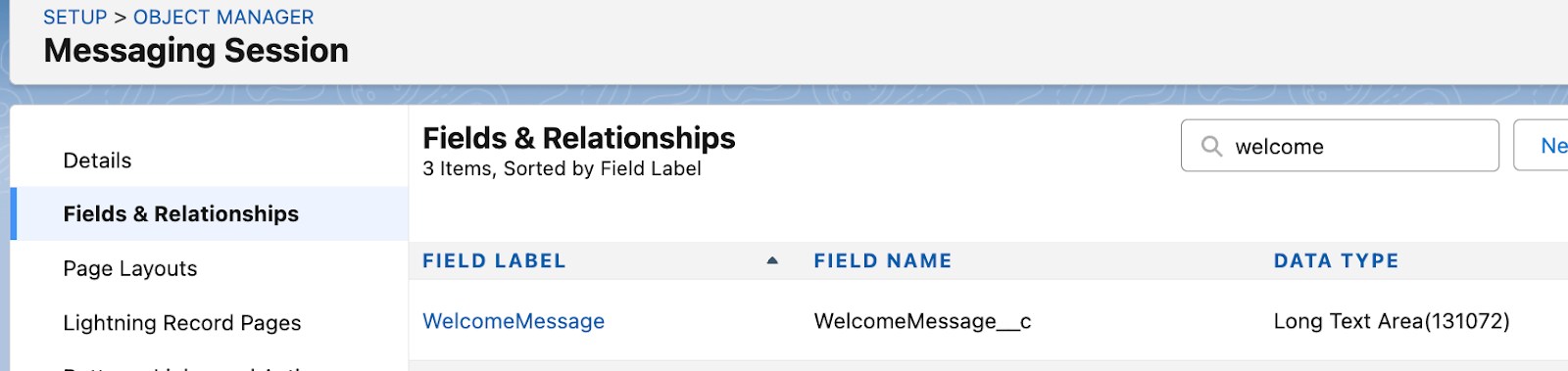
While the field supports the full 131,072-character limit, the recommendation is to use only what’s necessary. This field becomes the storage layer for the dynamic message.
Step 2: Expose the field as a Context Variable in Agentforce Builder
Next, the field needs to be accessible inside the agent experience.
- Follow this path: Setup → Agents → Select Agent → Open in Builder
Before making changes, deactivate the agent if it’s active.
2. From within Builder:
- Navigate to Context → Variables → Context Variables
- Select Messaging Session
- Click Edit Included Fields
- Add then new Welcome Message field
- Save
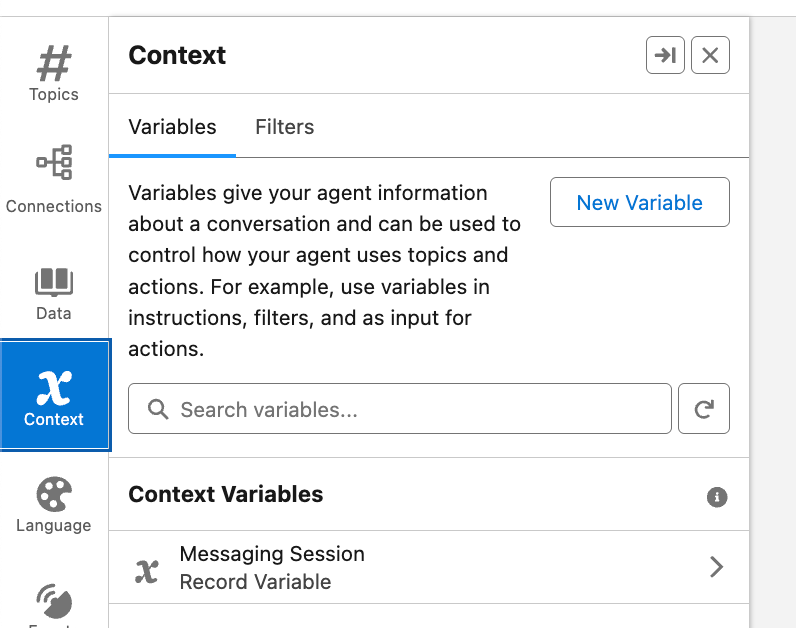
3. When saved, a Context Variable is automatically created using the same name as the API field, but without the __c suffix.
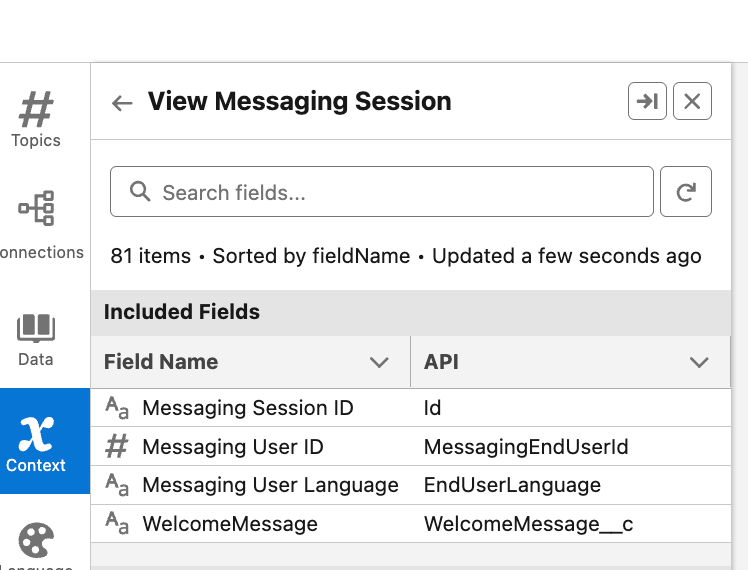
For example: WelcomeMessage__c becomes WelcomeMessage
This step connects the storage layer to the agent runtime.
Step 3: Update the agent’s welcome message to reference the Context Variable
Now that the variable is available, update the system message.
- Follow this path: Setup → Agent Details → System Messages → Welcome Message
2. Replace the existing static message:
{!$Context.<CONTEXT_VARIABLE_NAME>} With this merge field syntax:
{!$Context.WelcomeMessage} ⚠️ Important: Do not include the __c suffix in the variable name.
At this point, the agent is dynamically configured to render whatever content is stored in the custom field:

Step 4: Use an Omni-Channel Flow to generate and assign the message
To make the message dynamic, we used an Omni-Channel Flow to populate the custom field at runtime. Here’s the approach:
- Open or create the Omni-Channel Flow connected to the relevant channel and agent.
2. Create a Text Template resource to define the welcome message. The Text Template serves as the message blueprint, and it can include:
- Custom Labels
- Easy to update without creating a new version of the Flow or re-activating it.
- Admin-friendly and reduce maintenance overhead.
- Dynamic merge fields
- HTML structure
- CSS classes
- Static resource links (for logos or imagery)
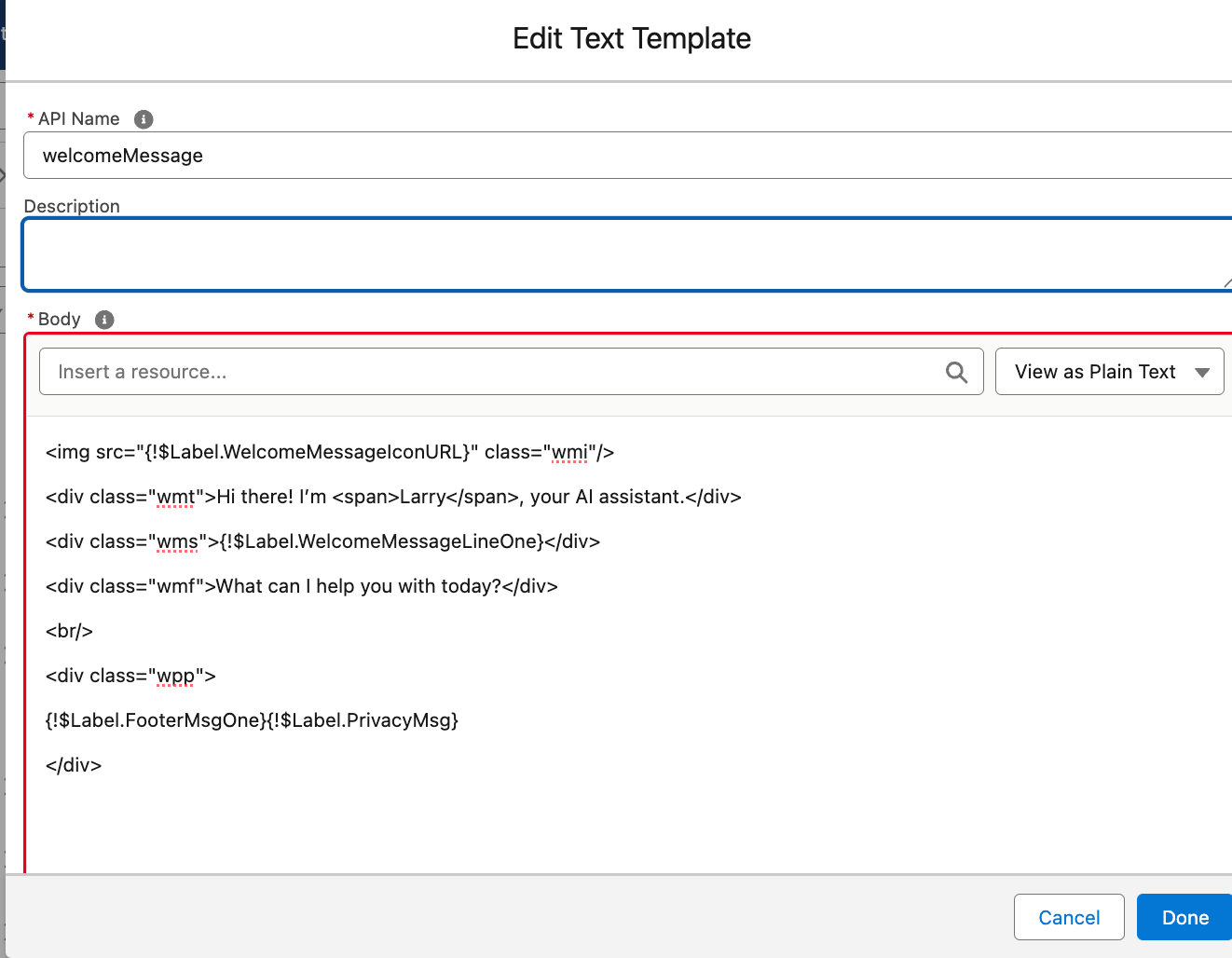
3. Assign the generated template value to the WelcomeMessage__c field.
4. Update the Messaging Session record within the flow.
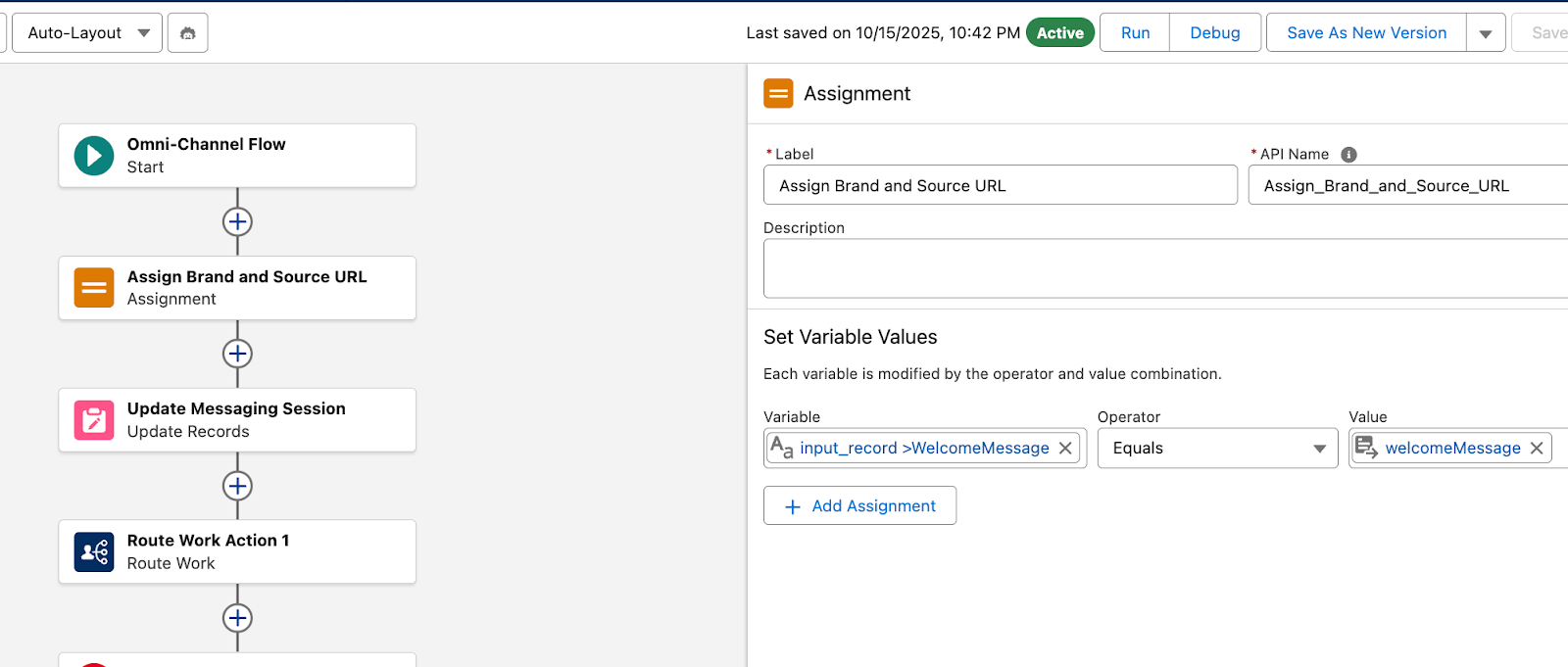
Once updated, the agent automatically renders the message via the Context Variable reference configured earlier.
Step 5: Add custom styling through Experience Cloud
To apply advanced styling, CSS can be injected at the site level.

- Start by identifying the Embedded Service Deployment (ESD) used by the agent. Note the numeric identifier (omit the final digit).
- Path: Setup → Experience Sites → Open the corresponding site → Builder
- Open the site whose name contains the same numeric identifier.
In Builder:
- Click Settings
- Go to Advanced
- Select Edit Head Markup
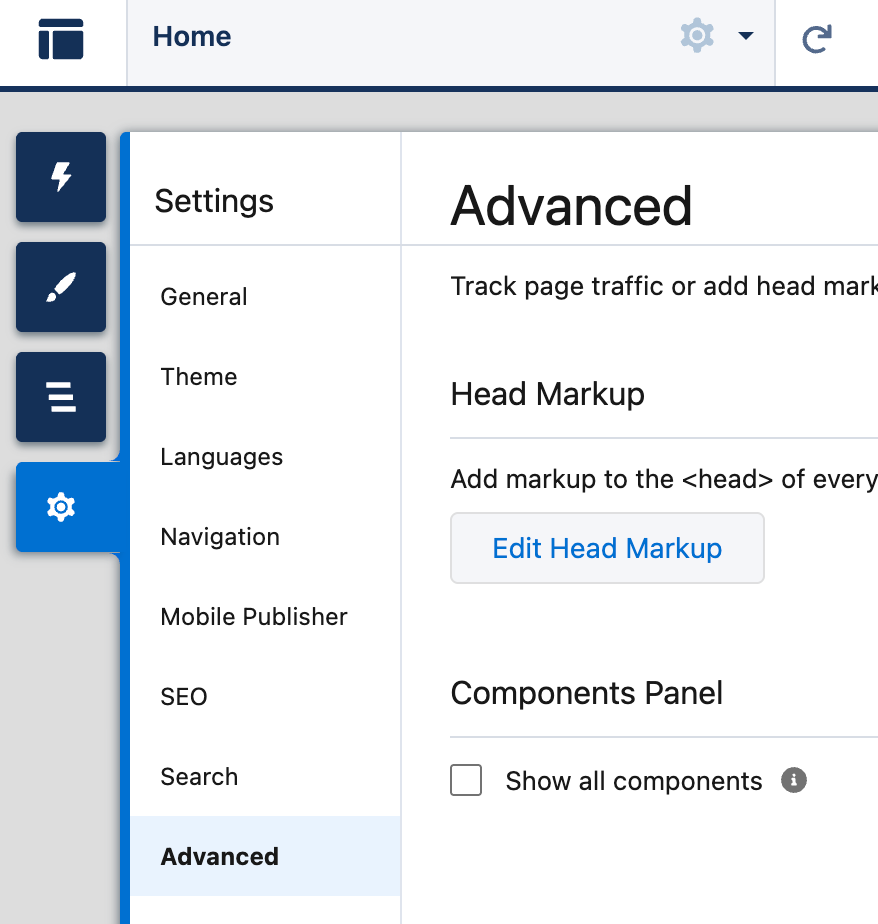
- Insert your CSS within <style> tags
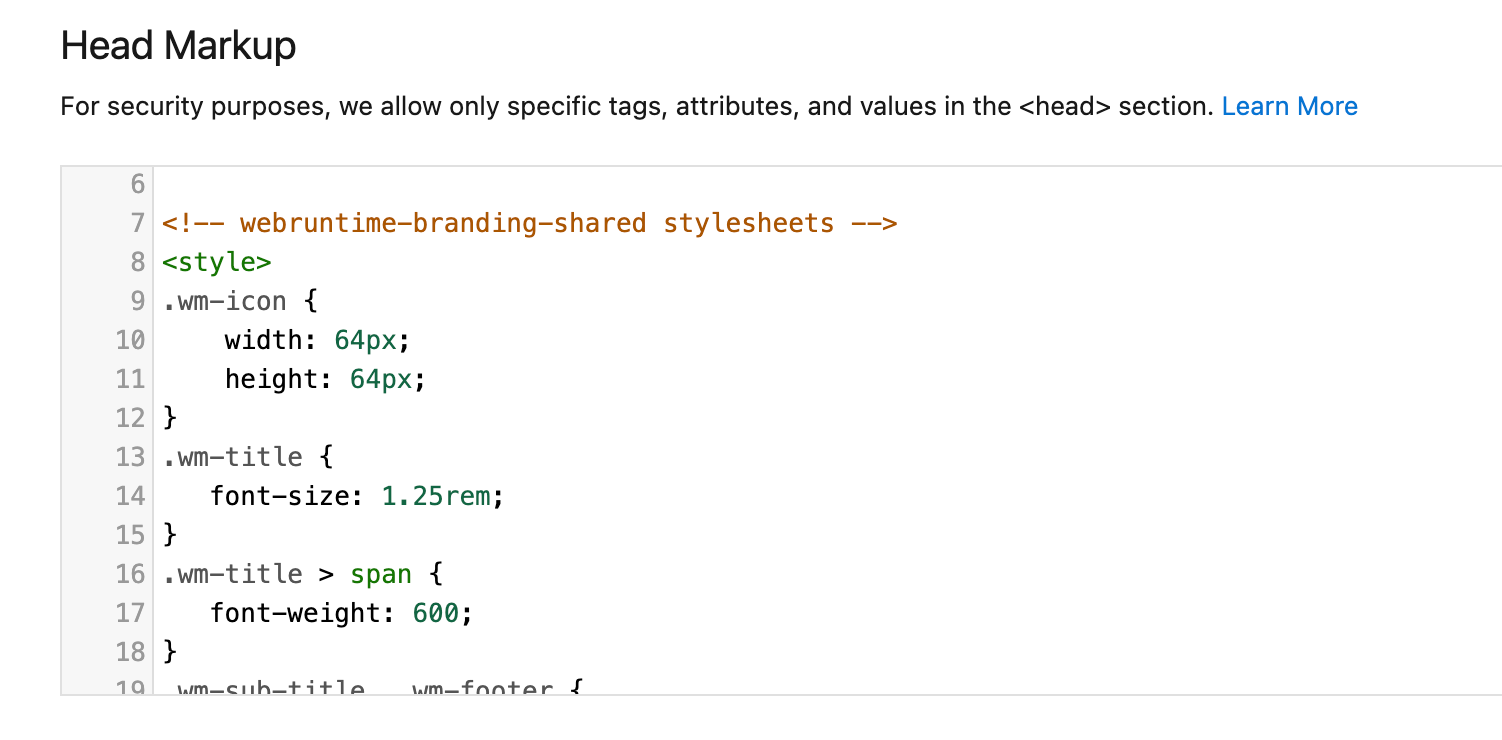
- Save and publish the site.
This allows full control over visual presentation, including typography, spacing, branding, and any necessary accessibility adjustments without modifying core logic. The final output should look like this:
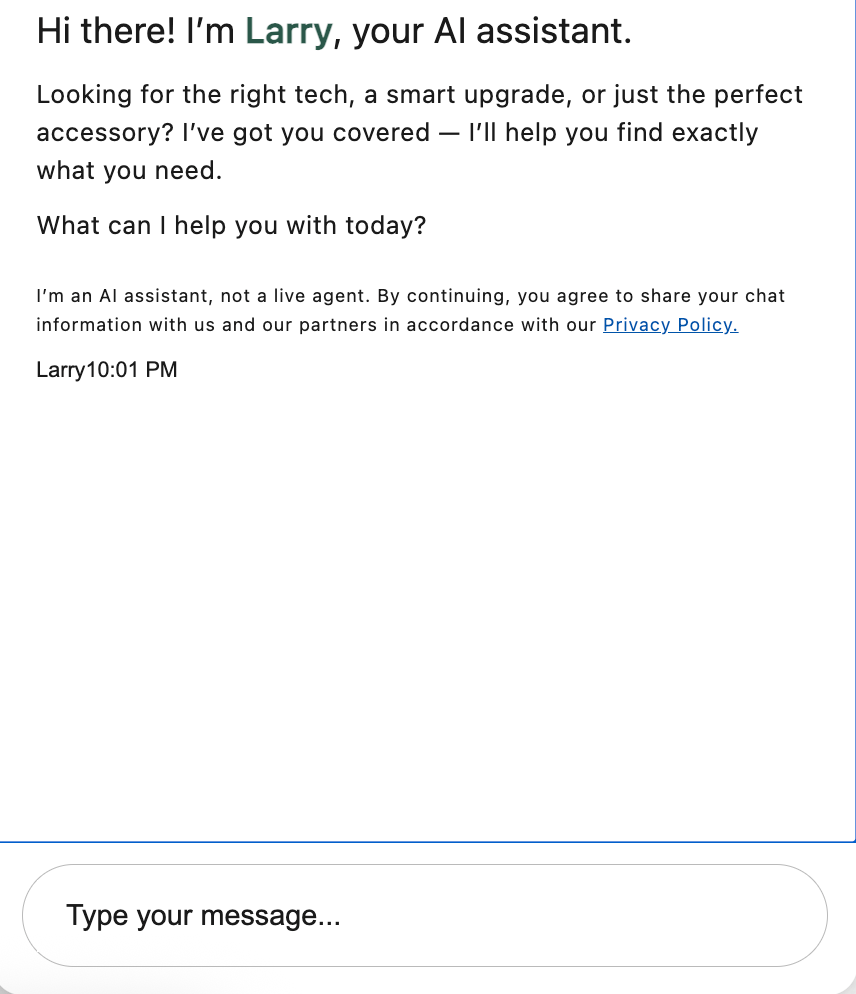
Final deployment steps
Once configuration is complete:
- Publish the Embedded Service Deployment to ensure updates take effect.
- When Custom Labels are updated later, re-deploy the Embedded Service to apply changes.
With this structure in place, the welcome message is no longer constrained by a static field. It’s dynamically generated, centrally managed, and independently configurable giving teams full control over their first impression without ongoing engineering dependency.


